Google Discover Images: Give Readers a Reason to Click
Publisher in a Box editorial teamUpdated
Table of Contents
You have the story, the reporting and a headline your readers will understand. Then, five minutes before publication, somebody needs a featured image. A stock photo gets dropped in, the article goes live, and everybody moves on to the next assignment.
That last decision deserves more attention than it usually gets. If Google shows your article in Discover, the image helps introduce the story to someone who has not gone looking for your publication. What can they understand from it? Why would they care enough to tap? And does the article deliver what that photo led them to expect?
For a publisher trying to make the most of Q4 without adding another expensive production process, this is a practical place to improve. You have already paid for the article. Give its visual introduction the same editorial judgment you gave the writing.
That does not mean redesigning every image or paying for a photo shoot for every post. It means choosing something specific to the story, delivering it correctly, and learning from what happens when readers arrive. Below is how to make that a manageable part of your publishing day.
What does Google actually ask for?
Google's Discover guidance recommends compelling, relevant, high-quality images. Its specifications include a width of at least 1,200 pixels, more than 300,000 total pixels, a 16:9 aspect ratio, and permission for large previews through max-image-preview:large or AMP.
Those are recommendations for presenting the content well. They don't buy you traffic. Google says an indexed page that meets Discover's content policies is automatically eligible, with no special tags or structured data required, and eligibility does not guarantee placement.
That distinction matters when somebody offers to solve Discover with one plugin setting. A large preview setting can remove a presentation limit. It cannot turn an ordinary article into reporting your audience needs.
1200 px
Google's recommended minimum image width for Discover, alongside its other image recommendations.
Source: Google Search Central, Discover and your website.
Think of this as two jobs. An editor chooses an image that means something. The publishing system makes that image available in a useful form. Either job can be done badly while the other looks completely finished.
The commercial opportunity is in getting both right without making every article more expensive to produce.
Choose the photo while you plan the story
The cheapest time to spot a missing photo is before the reporting or demonstration is finished. If a writer is already testing a storage idea, visiting a local attraction or preparing a recipe, decide which moment would help a reader understand the result.
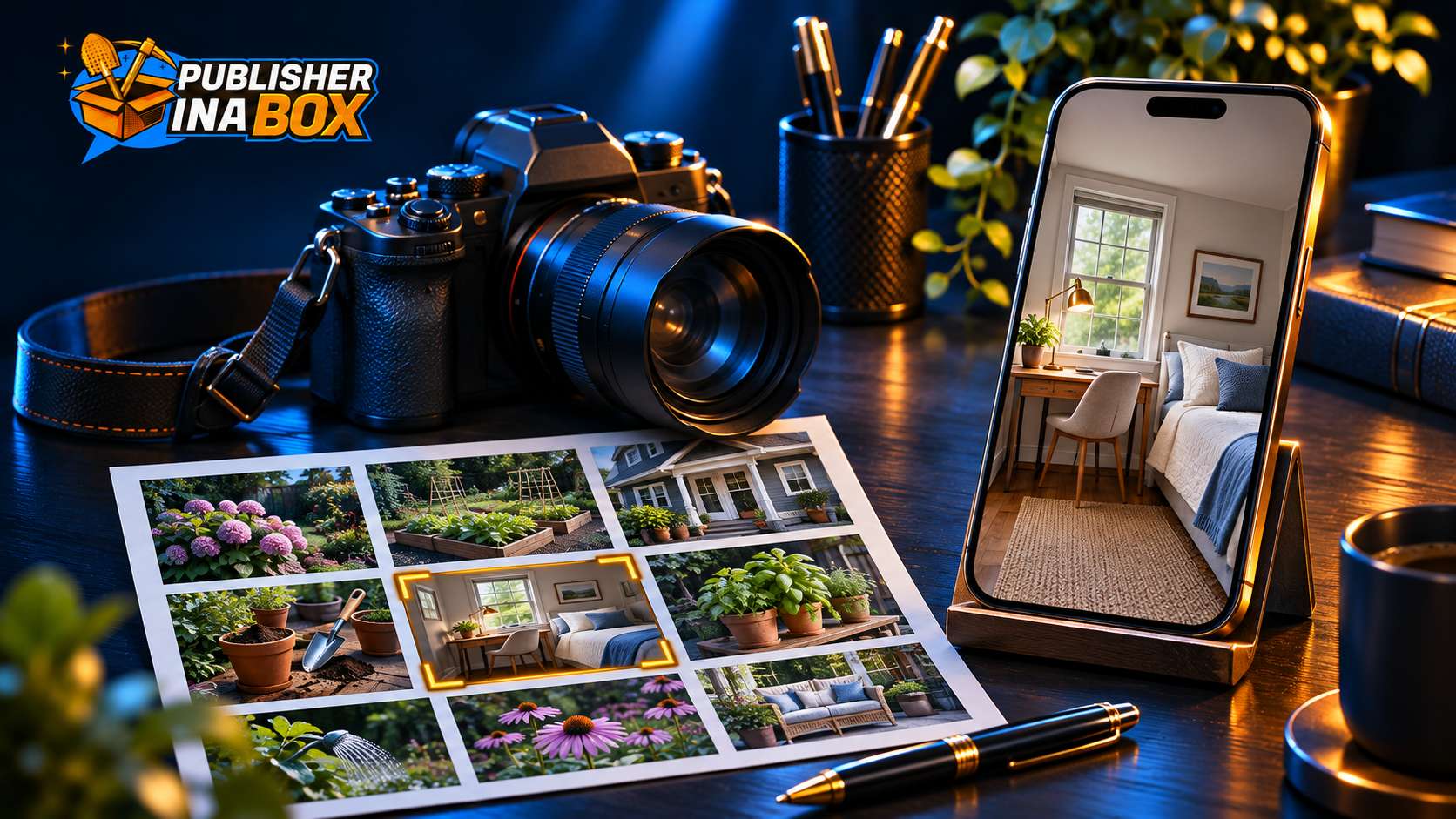
Picture a home publication explaining how to fit a workstation into a small guest room. A generic picture of an immaculate office may look attractive, but it does not show the constraint the article solves. A photo of the actual desk beside the bed, with enough of the room visible to understand the arrangement, gives the reader a useful preview.
Now consider a food article about getting a holiday meal ready with limited oven space. A photo of the finished table tells one story. A clear image of the actual prep setup tells another. Choose according to the article's central promise instead of automatically using the prettiest photo in the folder.
This is where original work shows. Your own demonstration, observation or access gives you something specific to show. You're helping a reader recognize a useful answer, and a familiar stock image can't carry an unfamiliar claim.
Ask the writer for one sentence with the image: what does this photo help the reader understand? If the answer is only that it looks nice, keep looking.
Sometimes a licensed photo will be the sensible choice. Keep its origin, permitted uses and required credit with the asset, and have the responsible person check them before publication. A production shortcut should not leave the next editor guessing where an image came from.
Check what survives when the image gets smaller
A large original can still make a poor small preview. Important detail may sit at the edge, the subject may be tiny, or the photo may need its caption to explain what is happening.
Make a 16:9 preview and look at it at roughly phone-card size. It's an editorial check you can do before publication. It won't reproduce every Discover layout.
Can you recognize the subject immediately? Does the important part of the scene survive the crop? Is the photo still informative without reading the article first? If it shows a result, can the reader actually see that result?
A garden publication might have a useful photo comparing two planters after a drainage test. Crop too tightly and the containers look identical. Crop too loosely and the difference disappears on a phone. The answer may be a different photo, rather than a brighter border or another line of text.
Google's Discover guidance specifically advises against generic images, such as a site logo, and recommends avoiding text-heavy images in the preferred-image markup. So a reusable social promo card and an editorial article photo deserve separate decisions.
You can keep a branded graphic for your social campaign while choosing a clearer, story-specific photo for the article's preferred image. Brand consistency still matters. It does not require every surface to carry the same graphic.
Let the image and headline make the same promise
An engaging headline gives readers a reason to care. The image should make that reason clearer.
If the article explains a practical storage solution, show the solution in context. If it reports a local opening, show the place you are discussing. If it compares products you tested, show the relevant products and the feature the comparison actually examines.
Do not use a dramatic photo from a different event to make ordinary reporting feel urgent. Do not create a before-and-after composition that implies a result the article never established. A visual can overpromise just as easily as a headline.
Google warns against misleading or exaggerated details in titles, snippets and images, as well as withholding information needed to understand the content. That still leaves plenty of room for a strong angle. Specific details can create interest without hiding what the story is about.
For the guest-room example, the interesting detail might be that the arrangement leaves room for a visitor to open a suitcase. Show that detail. You do not need to pretend the room holds a secret nobody has ever seen.
The image should make the article's promise easier to understand.
Read the headline, look at the image, then read the opening paragraph. They should feel like the start of the same conversation. If they introduce three different stories, fix the mismatch before asking the distribution team to promote it.
Check the image the website actually delivers
This is where a good editorial decision can get lost between the media library and the published page.
An editor may upload a large photo while the page's preferred-image markup still points to an old social card. Or the desktop page may look correct while the mobile version uses a crop that cuts off the useful part of the scene. Looking at the upload alone will not catch either problem.
Google's image documentation explains that og:image or appropriate schema.org markup can help specify a preferred image. Its Discover documentation says this can influence the chosen thumbnail. Google makes the final pick, so when you check your markup, you're checking your stated preference. You still don't control the feed.
For one published article, have the person responsible for the site check these points:
* The preferred-image URL names the image the editor selected, rather than a generic fallback.
* That URL loads the intended file and the file has the dimensions you expected.
* The page permits a large preview, with no conflicting rule that reduces it.
* The article still reads well on a phone, with the photo in the right context.
Google's robots documentation explains that max-image-preview controls the maximum preview size and that more restrictive rules take precedence when rules conflict. Have your developer inspect both the page's meta tags and any relevant HTTP headers. Adding a permissive tag without finding a conflicting restriction can leave the real problem in place.
Write useful alt text for the actual photo. Google's image guidance describes alt text as information that helps it understand the image, alongside the page's content. Describe what matters in the scene. Do not turn the field into a pile of unrelated search phrases.
Automate the checks, keep the choice with an editor
You do not need an AI agent to decide whether a photo accurately represents your reporting. You do need a reliable way to catch the same technical mistakes before they spread across twenty articles.
A simple setup could start with a spreadsheet containing the article URL, selected image URL, dimensions, preview setting, credit and editorial approval. A developer can turn the mechanical checks into a small script, or connect them in n8n with an HTTP request step and a code step. The workflow would fetch the page, pull out its preferred-image reference and inspect the referenced file.
Choose according to your operation. A small team publishing a few carefully edited pieces may get more value from a short checklist. A larger team using the same templates over and over may justify an automated check. Do not build a complicated dashboard to avoid spending thirty seconds looking at a photo.
Separate a technical failure from an editorial question in the result. An image URL that fails to load needs a repair. An image that is technically fine but says nothing about the story needs an editor. Marking both as a green check would hide the work that still needs doing.
Start with one template and a small sample of articles, then check what the workflow misses. Keep publishing and image changes under the normal editorial approval process. A technical check can flag a problem without automatically replacing artwork on a live page.
How do you know whether the work earned its time?
Start with the specific decision you changed. Record the image, crop, headline and change time, then review the article's Discover impressions, clicks and click-through rate in Search Console. Google's Discover performance report defines CTR as clicks divided by impressions.
That tells you how often an appearance became a click. It does not tell you what caused the click, what the visitor earned, or whether changing the image improved profit.
Imagine a report with 100,000 impressions and 3,000 clicks. That is a 3% CTR. A different period with 50,000 impressions and 2,000 clicks has a 4% CTR. The second period has a higher click-through rate and fewer clicks. These are illustrative figures, but the team should keep that difference in mind.
A higher CTR can still mean fewer visits
Discover clicks
Source: Illustrative arithmetic using 100000 and 50000 impressions respectively, not publisher results. Neither comparison proves an image caused the difference.
Google describes Discover traffic as less predictable than keyword-driven search. Different audience exposure, timing and content demand can change the result. A before-and-after screenshot is a lead worth looking into. It isn't a controlled image experiment.
If you change the title, photo and opening together, write that down too. You can judge the revised article as a package while being honest that you did not isolate the effect of each piece.
Use your website analytics and ad reporting to look at the landing pages over the same dates. Keep Discover clicks separate from analytics sessions and pageviews. If your reporting cannot reliably isolate Discover revenue, label the available page-level revenue as a broader measure. Do not credit every dollar the page earned to the feed.
Then look at the work involved. Was this an extra photo captured during an existing assignment, or a separate production project? Did it help the article attract useful visits, support related reading or bring in newsletter signups? Keep those outcomes distinct from directly measured revenue.
The decision is whether this approach should become part of the next assignment. You do not need to pretend every image edit has a precisely measurable return to make that call sensibly.
Make the next assignment easier
If the only result is that one article looks better, you have improved one article. If the writer now knows what photo to capture, the editor knows which crop to review, and the site reliably delivers it, the next assignment starts from a stronger position.
Keep a small internal collection of useful examples. Include an image that explains a result well, one that loses its meaning when cropped, and one that looked attractive but did not match the headline. Explain the editorial reason behind each choice. That is more useful than a folder of winning thumbnails with no context.
For wider planning, our guide to Google Discover monetization explains how the channel fits the revenue picture. If traffic has fallen, use the Discover recovery guide to look at the broader situation before assuming the photo caused it. And keep revenue diversification in the plan. A better image workflow should strengthen one distribution channel without making your business dependent on it.
Where to go from here
If your team wants help connecting editorial decisions, site presentation and ongoing analysis, Google Discover Consulting is the route for building that skill in-house. If you want PIB to run the Discover operation with you, review Google Discover Managed Distribution and its qualification process.
For your next article, start smaller. Decide what the reader needs to see while you are deciding what the writer needs to explain. You can have that conversation without buying another tool.
Frequently asked questions
What size should a Google Discover image be?
Google recommends at least 1,200 pixels in width, more than 300,000 total pixels and a 16:9 aspect ratio, along with large-preview permission and the rest of its Discover guidance. Meeting those recommendations does not guarantee placement.
Does max-image-preview:large get an article into Discover?
No. It permits a large image preview. Google says indexed content that meets Discover policies is automatically eligible, but eligibility does not guarantee an appearance. Relevant content and an honest visual presentation still need editorial attention.
Should I use my social graphic as the article's preferred image?
Review it separately. Google advises against generic logos and text-heavy preferred images. A story-specific photo may explain the article more clearly than a promotional graphic designed for another platform.
Can I tell whether a new image increased Discover revenue?
You can record changes and compare impressions, clicks, CTR and the revenue data available to you. Ordinary before-and-after comparisons do not isolate the image's effect, and page-level revenue may include traffic from other channels. Be clear about what the reports actually measure.
Key takeaways
* Plan the image with the story, so reporting and production can capture something useful.
* Review the photo at a small size and check whether the important detail survives.
* Make the headline, image and opening deliver the same clear promise.
* Check the preferred-image URL and preview permissions on the published page.
* Automate repetitive technical checks while keeping editorial choices with a person.
* Evaluate clicks, revenue and production effort separately before expanding the workflow.
The team behind 300M+ managed followers. We help publishers scale traffic, revenue, and audience across Facebook, Google Discover, and syndication networks.
Do you qualify for Google Discover turnkey management?
We look at your Google Discover or Google News traffic, and we ask for view access to Search Console. Meeting both does not guarantee acceptance. If it sounds like you, tell us about your site and we will review it.