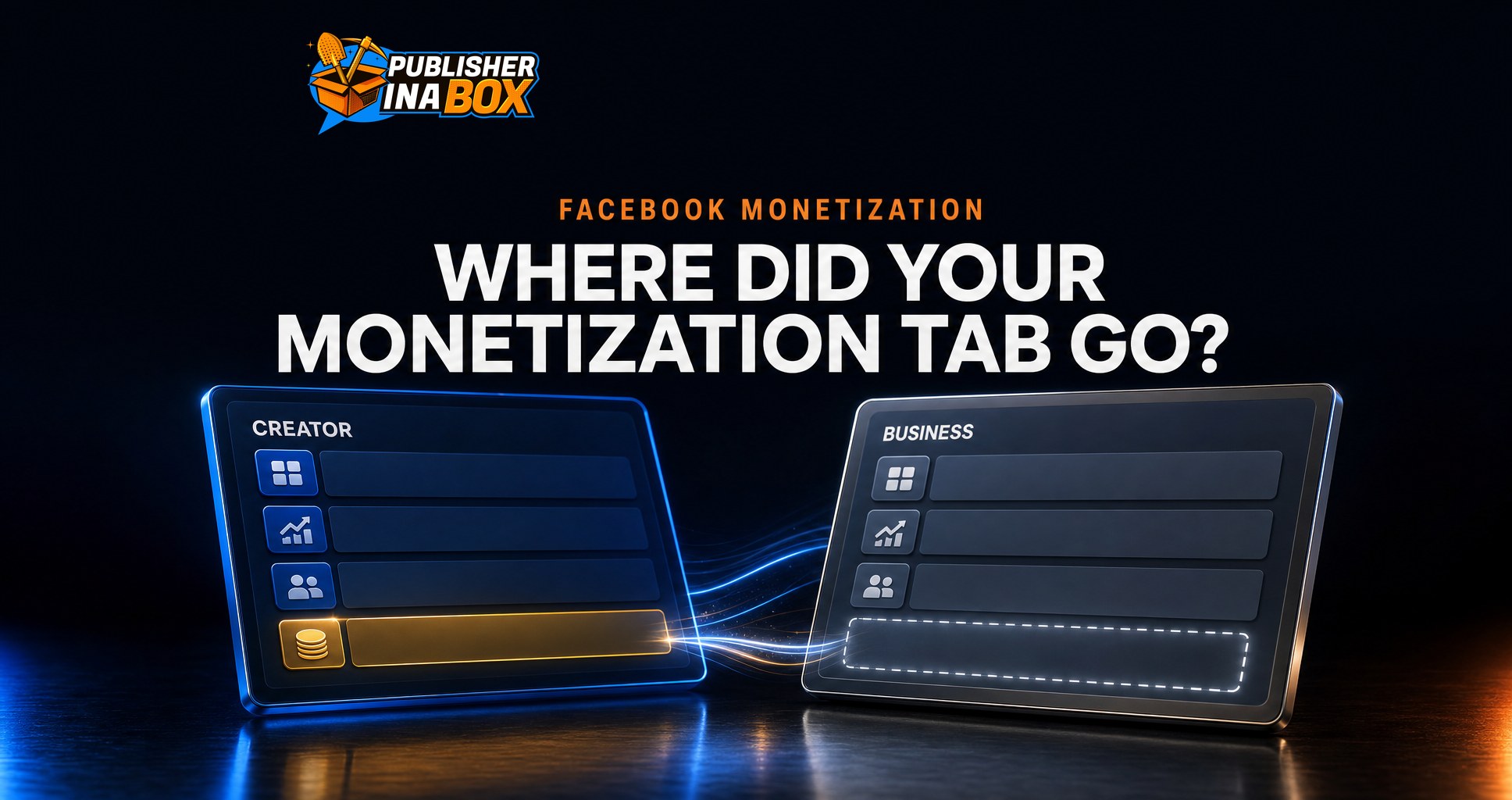
Facebook's Professional Dashboard Is Now Creator Dashboard or Business Dashboard. Why Your Monetization Tab Can Go Missing in 2026
Publisher in a Box editorial teamUpdated
Key takeaways
Facebook's Professional dashboard is now Creator Dashboard or Business Dashboard, with most tools in both.
Meta says Monetization is only visible to some business users, so a missing tab can be a dashboard setting, not a lost Page.
Check eligibility in Meta Business Suite on a computer, under Monetization, then View Page eligibility.
Switch a Page type one Page at a time and confirm the result before moving to the next.
Confirm payout accounts and legal names now, because Meta caps unpaid earnings at $500 per tool and forfeits them after 6 months without a payout account.
If the Status section shows a violation, act right away and follow the order of work, original content first on limited originality.
Table of Contents
If you open your Facebook Page this month and the Professional dashboard button is gone, nothing is broken. Meta's help pages now open with the same notice: "Professional dashboard has changed. You will now see Creator Dashboard or Business Dashboard on Facebook." The tools moved under two new names, and for a monetized Page one line on Meta's page matters more than the rename, because it says "Monetization is only visible to some business users."
That line is the first place to look when the Monetization tab disappears from a Page that was eligible last month. This guide covers what changed, what each dashboard holds according to Meta, how to switch, and the checks a Facebook publisher should run on every Page this week. Every rule below comes from Meta's own help pages, read on November 9, 2026, and where we give our own reading we say so.
What did Facebook change about the Professional dashboard?
Meta split one dashboard into two versions with the same core tools. Its help page says that if you have "a Facebook Page or a profile in pro mode, you can use Creator Dashboard or Business Dashboard to view insights, manage your presence and find resources," and that "many of the same tools are in both dashboards, but each one is tailored to the needs of creators or businesses."
According to that page, both versions include Insights with "an overview over the last 90 days," Monetization to "see and track your eligibility for monetization tools," the Content library, the Comments manager, education tools, and an AI assistant, which Meta calls Creator assistant or Page assistant depending on the account. Creator Dashboard users also get Fan engagement, which Meta describes as features "to identify your most engaged followers."
Meta's help page carries no launch date, and independent guides were describing the split by late October, so your Pages may not all show the same label at the same time.
Why can the Monetization tab disappear?
The answer sits in the note under Meta's tool list, which says monetization is only visible to some business users. A Page set to the Business type opens the Business Dashboard, and on some of those Pages the Monetization section simply does not appear. Nothing about the Page's eligibility has to change for that to happen, because the note describes visibility, not standing.
If the tab is missing, the natural conclusion is that the Page lost monetization, which can send a team chasing a violation that does not exist, so the first step is to confirm which dashboard the Page is opening before reading anything into a missing tab.
$500
What Meta says a monetization tool can pay before a payout account is set up, with a maximum of $1,500 across 3 tools. Earnings are forfeited if no payout account is added within 6 months.
Source: Meta Business Help Center, About payouts on Facebook
How do you switch a Page between Creator and Business?
Meta says "you can switch between dashboards at any time." On a Page, the setting is called Page type, and the route on a mobile device is: open your dashboard, tap Settings below Other near the bottom of the screen, tap Page setup below Audience and visibility, tap Page type, choose Creator or Business, then tap Confirm and follow the prompts.
On a profile in pro mode, the route is shorter. You open the dashboard, tap Settings below Other, tap Dashboards, then choose For creators or For businesses and confirm.
Meta's dashboard page does not list what else changes on a Page when the type changes, so we treat the switch as a setting to make deliberately, one Page at a time, with a note of what it was before. If you run a portfolio, change one Page, confirm the Monetization section appears and the Page behaves as expected, and only then move to the next.
Where should you check monetization eligibility now?
The most reliable view is still on a computer, because Meta Business Suite does not depend on which dashboard a phone opens. Meta's eligibility page gives the desktop route as: go to Meta Business Suite, click Monetization on the left, and in the Status section click View Page eligibility. If Monetization is not on the left, Meta says to "go to All tools and click Monetization below Sell products and services."
The Status section is where problems surface, because Meta says "you'll see an overview of any monetization violations." On mobile, the wording tells you where you stand: eligible programs show "Ready to set up" with a Set up button, and if you are not eligible, "Not yet eligible will appear above the list of monetization programs." Meta adds that you can tap an individual program to see the criteria it requires, which is the quickest way to learn what is actually missing.
One detail is worth knowing before you follow any older instructions. Several of Meta's own help pages still give steps that start with "Professional dashboard," including the steps for joining Content Monetization, even though the notice at the top of the same pages says the name has changed. When a step says Professional dashboard, read it as Creator Dashboard or Business Dashboard. That is our reading of the notice at the top of those pages.
A missing Monetization tab is a visibility question first. Check which dashboard the Page opens before you go looking for a violation.
Does the rename change how you get into Content Monetization?
It does not. Meta's Content Monetization page says the program "is currently invite-only," and that creators "will receive invitations from an official, in-product Facebook or Meta channel, including the Facebook app, email, Meta Business Suite and the Professional dashboard." Meta adds that "authentic invites can be found in the monetization tools sections of these channels," which is a useful test when an email claiming to be an invitation looks off.
If no invitation has arrived, Meta points to its interest form, and our guide to getting approved for Facebook's Content Monetization program covers what a Page can do while it waits. Meta also says that "monetization tools are only available to certain Pages in certain regions at this time," so a Page outside an eligible market will not see the program whichever dashboard it uses.
What payout settings should you confirm while you are in there?
A dashboard change is a good moment to confirm the payout side, because Meta's payout rules have deadlines that a missing tab can hide. Meta's payouts page says "without a payout account, you can earn up to $500 per monetization tool, with a maximum of $1,500 across 3 tools," and "if you don't add a payout account within 6 months, you'll forfeit and waive all rights to receive your earnings."
The same page sets a name rule that matters for publishers who run Pages through a company. Meta says "the name on your Facebook or Instagram account must match the full legal name associated with your tax ID, social security number, FEIN or VAT." It also says payouts "are released around the 21st of every month for earnings made in the previous month," which gives you a date to check against each month.
What should a monetized Page do if the Status section shows a violation?
If the eligibility check turns up a violation, the dashboard rename is no longer the story, and the order of work matters. On a limited originality violation, set up your original content first, then appeal within a day or so. On other violations, appeal right away. Do not delete a flagged post before its appeal is decided, and do not wait out the penalty period before filing, because the window to make a clean case is short.
Meta's limited originality page says the violation "carries a 90-day demonetization penalty" in most cases, and that more unoriginal content during that period "may result in the extension of the demonetization penalty period." Our limited originality guide walks through the full order of work, and our explainer on why some Facebook posts earn nothing covers the cases where a Page is monetized but a post still does not pay.
What about the new Creator Studio app?
Meta now offers a separate mobile app called Creator Studio, which it describes as "an AI-powered, companion app for Facebook creators." It shows recent content performance, suggests next steps, and includes AI comment tools, and Meta says suggested replies are "never sent without your approval."
Access is narrower than the dashboards. Meta says you must be on a mobile device, be 18 or older, "reside in the US, Canada or India," and have a Page or a profile in pro mode. Meta's page for the app describes performance, community and content tools, so for a publisher running several Pages it is an extra window into performance, while the eligibility, payout and violation checks above still run through Meta Business Suite and the dashboards.
A checklist for every Page you run
This is the order we would use on each Page this week, one Page at a time:
1. Open the Page and note whether it shows Creator Dashboard or Business Dashboard. 2. Open Monetization. If it is missing on the Business Dashboard, check eligibility on a computer before changing anything. 3. In Meta Business Suite, open Monetization, then View Page eligibility, and record what the Status section shows. 4. If the Page earns on Facebook and Monetization is hidden, consider switching the Page type to Creator, then confirm the tab appears. 5. Confirm a payout account is set up and the account name matches the legal name on the tax record. 6. Update any internal checklist or SOP that still says Professional dashboard, so your team follows the new names.
A Page is one channel in a publishing business, as we explain in what a Facebook publisher is, and documented settings make that business easier to run and value.
Where to go from here
If you would rather your team run Facebook the way we do, with the playbooks, SOPs and AI workflows kept current as Meta changes its screens and rules, Facebook Consulting trains your team on the system behind 300M+ followers and supports them for 3 to 12 months, and you keep 100% of the revenue. For the infrastructure on its own, the Facebook Monetization Suite is a one-time $499.
Frequently asked questions
Where is the Professional dashboard on Facebook now?
Meta renamed it. Its help pages say "You will now see Creator Dashboard or Business Dashboard on Facebook." You can open it from your Page or pro mode profile, or from the menu on mobile and the left side of your Feed on a computer.
Why can't I see Monetization in my Business Dashboard?
Meta says "Monetization is only visible to some business users." Check eligibility in Meta Business Suite on a computer first. If the Page earns from content, switching the Page type to Creator is the route Meta documents for the creator version of the dashboard.
Is it safe to switch my Page from Business to Creator?
Meta says you can switch between dashboards at any time. Its dashboard page does not list every other effect of a Page type change, so switch one Page, confirm it behaves as expected, and keep a note of the original setting.
Does the Creator Dashboard make my Page eligible for Content Monetization?
No. Content Monetization "is currently invite-only," according to Meta, and eligibility depends on Meta's policies and your market, not on the dashboard name. The dashboard is where you see your status.
How do I check my Facebook monetization eligibility on a computer?
Go to Meta Business Suite, click Monetization on the left, and in the Status section click View Page eligibility. If Monetization is not on the left, Meta says to look under All tools, below Sell products and services.
When does Facebook release payouts?
Meta says payouts "are released around the 21st of every month for earnings made in the previous month," once you meet its policies, set up a payout account, complete tax verification and reach the minimum for each tool.
Sources
Meta Business Help Center, About Creator and Business Dashboards on Facebook, read November 9, 2026, facebook.com
Meta Business Help Center, How to check your monetization eligibility on a Facebook Page or profile, read November 9, 2026, facebook.com
Meta Business Help Center, About Facebook Content Monetization for creators, read November 9, 2026, facebook.com
Meta Business Help Center, About payouts on Facebook, read November 9, 2026, facebook.com
Meta Business Help Center, About monetization tools on Facebook, read November 9, 2026, facebook.com
Meta Business Help Center, Understanding limited originality of content violations, read November 9, 2026, facebook.com
Meta Business Help Center, About the Creator Studio app, read November 9, 2026, facebook.com
Lilach Bullock, Facebook Professional Dashboard: Where It Went and How to Use It, October 23, 2026, lilachbullock.com
See more from Publisher in a Box in your Google results
The team behind 300M+ managed followers. We help publishers scale traffic, revenue, and audience across Facebook, Google Discover, and syndication networks.